

Overview
As your team expands with additional internal staff, organization becomes increasingly important. You may want to restrict which team members can view specific clients or receive notifications about particular client activities.This capability requires an Advanced plan subscription.
How it works
Client Access permissions enable you to define precisely which internal team members can access and view specific clients. When an internal user lacks access to a client, that client and their associated data remain hidden across all enabled applications. This means permissions configured once apply consistently throughout the entire Assembly Platform.How to configure client access
Client Access requires an Advanced plan subscription.
- Go to Settings > Team.
- By default, the Client access column shows Full Access for each client.
- Click the three-dot menu and select Change client access.
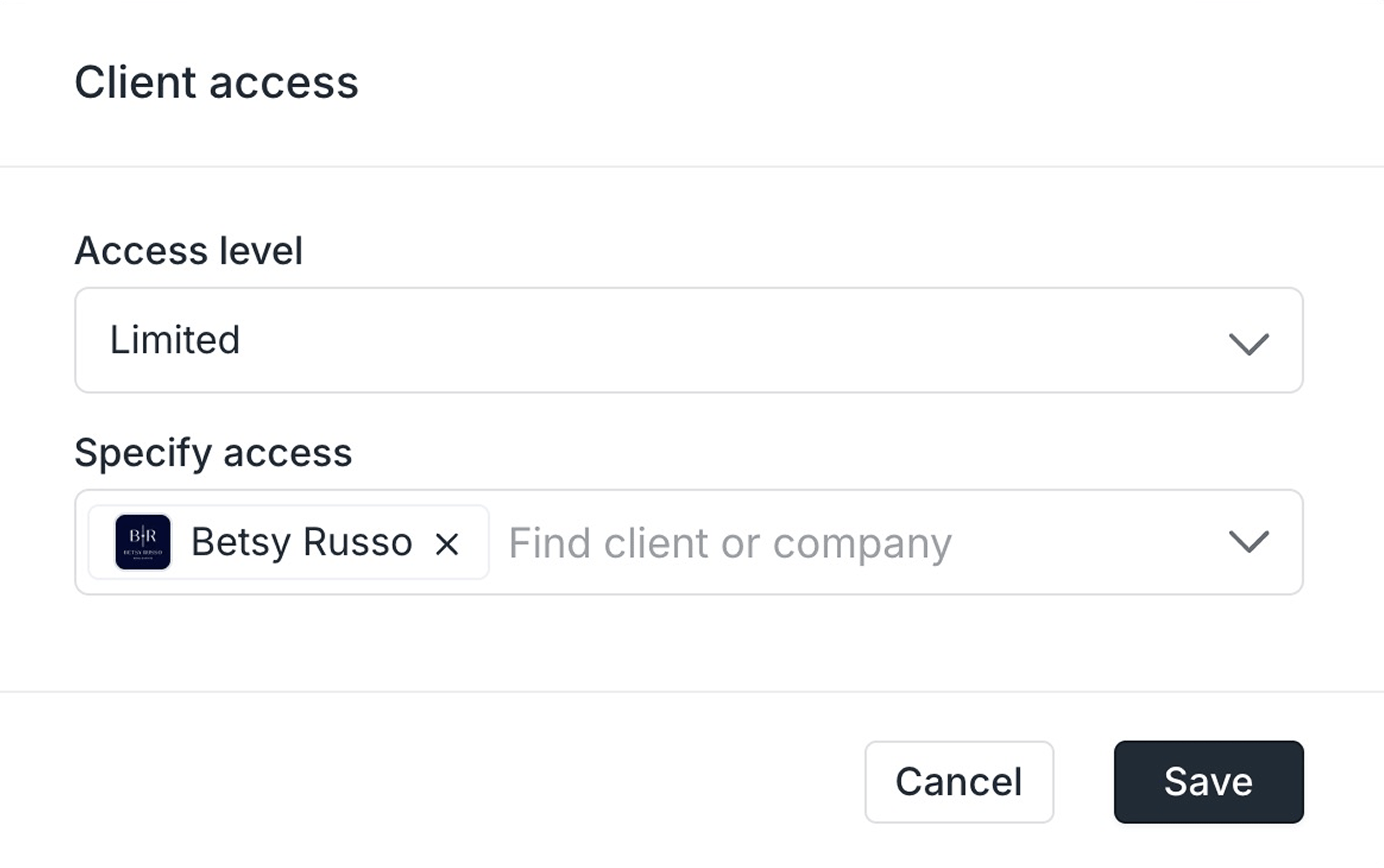
- In the first dropdown, switch from Full access to Limited.
- In the second dropdown, choose which clients or companies this user should access.
Frequently asked questions
When specifying client access, do I select clients or companies?
When specifying client access, do I select clients or companies?
This depends on your configuration. With companies disabled, only clients appear. With companies enabled, companies typically display, though individual clients without assigned companies may also appear.
I remember being able to configure client access with "Leads" and "Assignees". Can I still do that?
I remember being able to configure client access with "Leads" and "Assignees". Can I still do that?
As of January 18, 2024, these options were replaced with “an improved client access permissions model” that offers better intuitiveness and enhanced performance.