

App setup
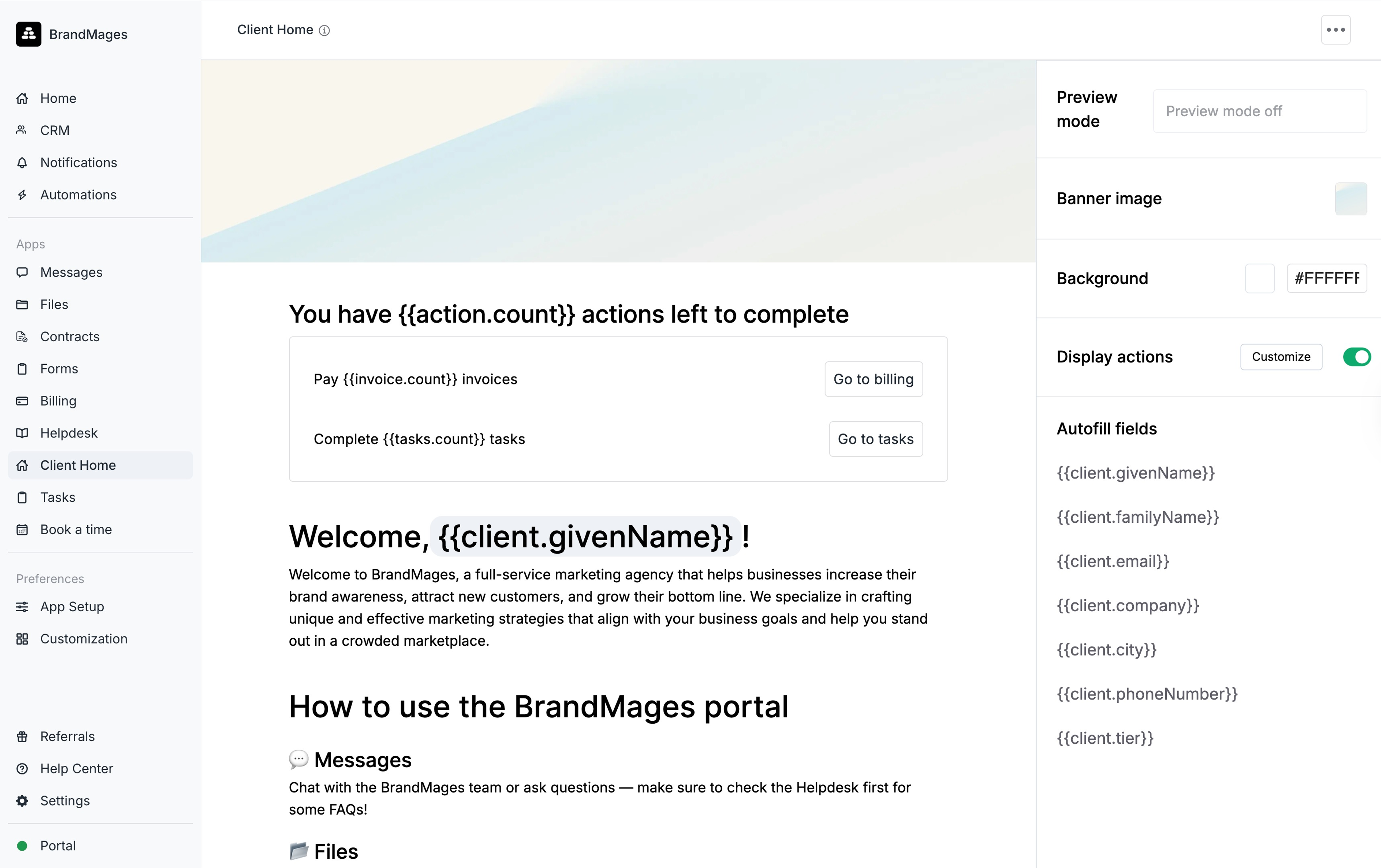
Installation involves accessing App Library, selecting Client Home from Client Apps, clicking Install, setting a title and icon, and dragging the app to the top position in the app list to ensure clients see it first upon login.Setting up your Client Home
The app includes a sample layout for customization. The left side accommodates content while the right side provides customization tools including Dynamic Fields and Segments.Segments
Segments enable “up to 5 Client Home variants per workspace,” with each client viewing only one version based on custom field tag rules. Creating a Segment:- Click Segments
- Click Create Segment
- Enter a segment name
- Select tags under “Show this segment if Tags is”
- Optionally click + OR for additional tags
- Click Create
- Click Segments
- Hover over the target segment
- Click the menu button (…)
- Select Update Segment or Delete Segment
Adding content
Content can be added via text editor or the ”/” quick menu, offering options including:- Headings (1, 2, 3)
- Text
- Autofill Fields
- Lists (bullet and numbered)
- Upload, Table, Callout, Divider, Embed, Link
Dynamic Fields
These “automatically display client-specific information like names or custom data.” Add them by typing ”/” and selecting Autofill fields or clicking Dynamic fields on the right panel.Actions
This setting controls visibility of the Actions section displaying:- Invoices
- Forms
- Contracts
- Tasks