

Internal user experience
Views
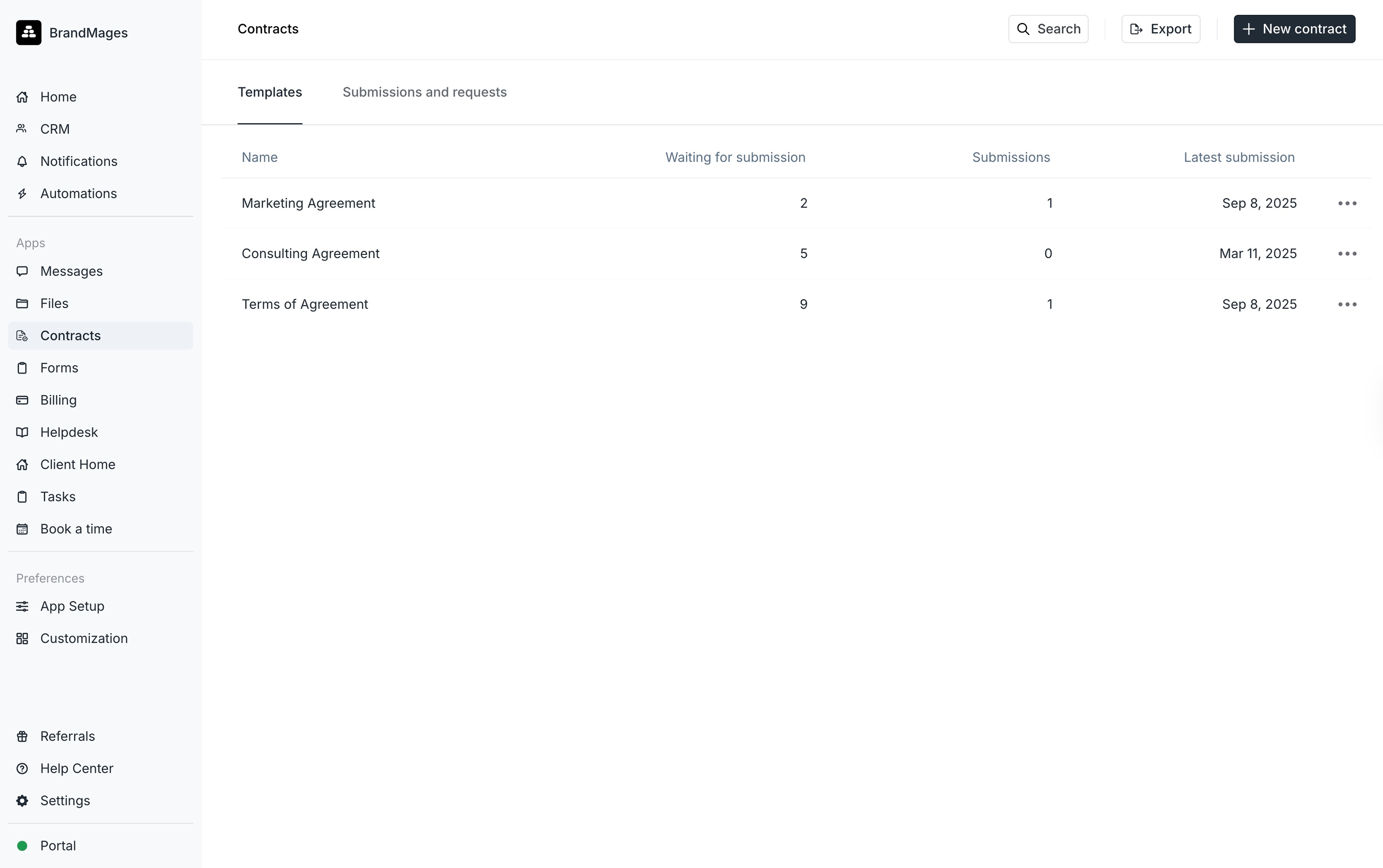
Templates view Here you can see all the templates you have created and useful information for each, including:- The number of open requests
- The number of submissions
- The date of the latest submission
- Recipient
- Associated contract template
- Sent date
- Submission date
- Status (The status will always be Signed or Pending.)
Creating a contract template and sharing it
When possible, you should always use an existing contract template rather than create a new one. Contract templates are highly configurable.PDF files over 50 pages are not currently supported in the Contracts app.
- Click on New contract template
- Upload a .pdf file that represents the underlying contract template. You can click on Choose a file or drag and drop.
- The template name will be auto-populated based on the file name, but you can edit it if you want to.
- Add your blocks. See the table below to understand the differences.
- Click on Create template.
- Click on Share contract, add one or more clients, and then click on Send contract to confirm the contract request.
When sending a contract, clients associated with companies will display the company name below the client name. Clients with multiple companies will appear once for each company. Select the clients based on which company or companies should receive the contract.
Our recommendation: If you use custom fields to track information like phone numbers and addresses, you can use autofill fields to automatically add this info to contracts.
Our recommendation: Variable inputs are great for info you don’t know until you’ve decided to assign a contract to a client. For example, if you have a sales agreement you could set up a variable field with the total price of the contract.
Client experience
Email notifications
Clients receive email notifications when a contract is ready for signature. This email notification contains the contract as a PDF attachment for easy reference, and a link to the signing experience. Clients receive a second email notification when all parties have signed the contract. This email notification contains the completed contract with an audit trail as an attachment.Portal notifications
Clients can see open and signed contracts by clicking on Contracts on the portal sidebar. If there are any open eSignature requests, the Contracts sidebar item will have an indicator that represents the number of open eSignature requests.Frequently asked questions
What happens to a pending contract request if it is canceled?
What happens to a pending contract request if it is canceled?
For pending contracts, if the request is canceled, the pending contract is removed entirely and cannot be restored.If it was sent to the client using an existing contract template, you can always re-send to the client from the same template.For one-off contracts, the contract will need to be recreated and re-sent to the client.
If I archive a contract template, how can I restore it?
If I archive a contract template, how can I restore it?
If you need an archived contract template restored, please send a support request to support@assembly.com and include the name of the contract template (required).
Can I have multiple clients sign a contract?
Can I have multiple clients sign a contract?
Currently multi-party signatures are not supported, but this is an open feature request on our roadmap.In the meantime, the best workaround is to send the contract to your first client and have them sign. Then, download the signed contract, re-upload as a one-time contract, and add the inputs for the 2nd client to sign.