> ## Documentation Index
> Fetch the complete documentation index at: https://studio.assembly.com/docs/llms.txt
> Use this file to discover all available pages before exploring further.
# Custom fields
> Track additional properties on contacts and companies.
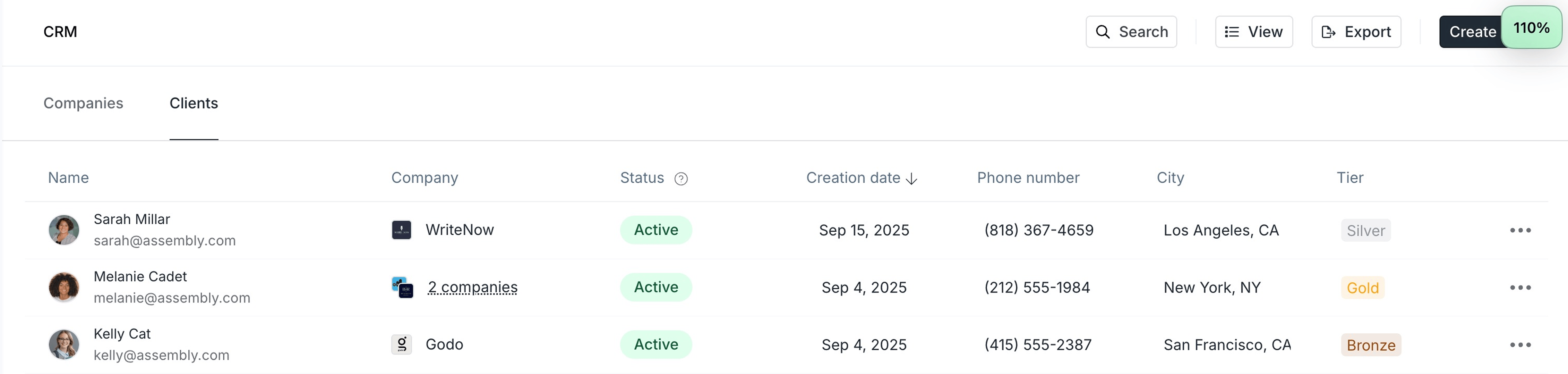
Custom fields let you track additional properties for contacts and companies. Once created, a custom field is available across all contacts and companies. You can view custom fields on the **Contacts** page, **Contact Details** page, **Companies** page, and **Company Details** page.
 ## Types of custom fields
| Type | Usage |
| ------------ | ------------------------------------------------------------------------------------------------------------------------------------------------------------------------------------------------------------------------------------------------------------------------------------------------ |
| Phone number | A field for entering and storing valid phone numbers in a standardized format. The format needed for a successful update is `+{countryCode}{areaCode}{number}`. Examples: US `+12123456789`, UK `+442071234567`. **Note:** the countryCode and areaCode must be valid for the update to succeed. |
| Email | A field designed for capturing and validating email addresses. |
| URL | A field for web links that are automatically verified for format. |
| Text | A generic field for entering alphanumeric characters, commonly used for names or short descriptions. |
| Number | A numerical input field that supports integers and decimals, ideal for quantities or monetary values. |
| Address | A field for physical addresses, often segmented into components like street, city, and zip. |
| Tags | A field that enables categorization through single or multiple keyword entries that can be filtered or sorted. |
## Create a custom field for a contact
1. On the **Contacts** page, click any contact.
2. On the **Contact Details** page, go to the **Details** tab and click the **+** next to **Custom Fields**.
3. Choose the type of custom field you want to create. Keep the default name or enter a new one. The field is now available for all contacts.
## Create a custom field for a company
1. On the **Companies** page, click any company.
2. On the **Company Details** page, go to the **Details** tab and click the **+** next to **Custom Fields**.
3. Choose the type of custom field you want to create. Keep the default name or enter a new one. The field is now available for all companies.
## Update custom field values
After you create a custom field, it becomes available for all contacts and companies. However, the value of that field can be different for each one. For example, if you create a **Phone Number** custom field, each contact or company can have their own phone number.
You can update custom field values in two ways:
* **From the Contact or Company Details page:** click a contact or company from the **Contacts** or **Companies** page, then update the custom field values in the right sidebar.
* **From the Contacts or Companies page:** edit custom field values directly from the main list. This option is convenient when you need to update fields for many contacts or companies at once.
### Address custom fields
When adding an address custom field for a contact or company, you are prompted to select a country. Once a country has been selected, you can enter the remainder of the address.
Custom fields for addresses support autocomplete for US, UK, Canada, and Australia. Start typing the street address in the **Address line 1** input and you are shown options to autocomplete the address. This ensures addresses are valid in the countries listed.
If entering an address for a country not listed above, autocomplete is not available. You can still enter the address manually.
## Frequently asked questions
To update multiple contacts at once, you can use the Contact Import feature.
**Step 1: Export your contacts**
In order to update your contacts, you'll need a `.csv` that exactly matches your current contacts. Export your list of contacts to a `.csv` by clicking **Export** in the top-right corner of the **Contacts** page. This downloads a file with all of your current contact data and custom fields.
If you only want to update some contacts (from a specific company or with the same email domain, for example), use the **Search** button at the top to filter your contacts. The **Export** button then exports only the contacts you have searched for.
**Step 2: Edit your contact fields**
Once you've exported the contacts you wish to update, open the exported file in Google Sheets, Numbers, Excel, or another spreadsheet editor of your choice. Then make changes and add values to the fields you want to update.
We use emails as the identifiers for contacts, so you cannot change the contact email. If you change this field, a new contact is created for the new email address. Any changes to email addresses must be made by the contact themselves.
Once you've made the changes to your contact fields, export or download the updated document in `.csv` format.
**Step 3: Import your changes**
To add the updates to Assembly, go to the **Contacts** page, click the **+ New Contact** button in the top-right, and select **Import many contacts**. Upload your file in the **Import** step.
In the **Match** step, all of the fields should be matched, except for **Status** and **Creation date**. Click **Ignore column** for both of these fields, then click **Next** in the top-right.
In the **Preview** step, you should not see any new contacts (unless you have added new contacts to the spreadsheet). Click the **Updated contacts** tab to preview the updates.
If everything looks correct, click **Import only** in the top-right.
You are taken back to your **Contacts** page and a message appears at the bottom confirming your changes were imported successfully. Refresh the page to see the updated fields.
## Types of custom fields
| Type | Usage |
| ------------ | ------------------------------------------------------------------------------------------------------------------------------------------------------------------------------------------------------------------------------------------------------------------------------------------------ |
| Phone number | A field for entering and storing valid phone numbers in a standardized format. The format needed for a successful update is `+{countryCode}{areaCode}{number}`. Examples: US `+12123456789`, UK `+442071234567`. **Note:** the countryCode and areaCode must be valid for the update to succeed. |
| Email | A field designed for capturing and validating email addresses. |
| URL | A field for web links that are automatically verified for format. |
| Text | A generic field for entering alphanumeric characters, commonly used for names or short descriptions. |
| Number | A numerical input field that supports integers and decimals, ideal for quantities or monetary values. |
| Address | A field for physical addresses, often segmented into components like street, city, and zip. |
| Tags | A field that enables categorization through single or multiple keyword entries that can be filtered or sorted. |
## Create a custom field for a contact
1. On the **Contacts** page, click any contact.
2. On the **Contact Details** page, go to the **Details** tab and click the **+** next to **Custom Fields**.
3. Choose the type of custom field you want to create. Keep the default name or enter a new one. The field is now available for all contacts.
## Create a custom field for a company
1. On the **Companies** page, click any company.
2. On the **Company Details** page, go to the **Details** tab and click the **+** next to **Custom Fields**.
3. Choose the type of custom field you want to create. Keep the default name or enter a new one. The field is now available for all companies.
## Update custom field values
After you create a custom field, it becomes available for all contacts and companies. However, the value of that field can be different for each one. For example, if you create a **Phone Number** custom field, each contact or company can have their own phone number.
You can update custom field values in two ways:
* **From the Contact or Company Details page:** click a contact or company from the **Contacts** or **Companies** page, then update the custom field values in the right sidebar.
* **From the Contacts or Companies page:** edit custom field values directly from the main list. This option is convenient when you need to update fields for many contacts or companies at once.
### Address custom fields
When adding an address custom field for a contact or company, you are prompted to select a country. Once a country has been selected, you can enter the remainder of the address.
Custom fields for addresses support autocomplete for US, UK, Canada, and Australia. Start typing the street address in the **Address line 1** input and you are shown options to autocomplete the address. This ensures addresses are valid in the countries listed.
If entering an address for a country not listed above, autocomplete is not available. You can still enter the address manually.
## Frequently asked questions
To update multiple contacts at once, you can use the Contact Import feature.
**Step 1: Export your contacts**
In order to update your contacts, you'll need a `.csv` that exactly matches your current contacts. Export your list of contacts to a `.csv` by clicking **Export** in the top-right corner of the **Contacts** page. This downloads a file with all of your current contact data and custom fields.
If you only want to update some contacts (from a specific company or with the same email domain, for example), use the **Search** button at the top to filter your contacts. The **Export** button then exports only the contacts you have searched for.
**Step 2: Edit your contact fields**
Once you've exported the contacts you wish to update, open the exported file in Google Sheets, Numbers, Excel, or another spreadsheet editor of your choice. Then make changes and add values to the fields you want to update.
We use emails as the identifiers for contacts, so you cannot change the contact email. If you change this field, a new contact is created for the new email address. Any changes to email addresses must be made by the contact themselves.
Once you've made the changes to your contact fields, export or download the updated document in `.csv` format.
**Step 3: Import your changes**
To add the updates to Assembly, go to the **Contacts** page, click the **+ New Contact** button in the top-right, and select **Import many contacts**. Upload your file in the **Import** step.
In the **Match** step, all of the fields should be matched, except for **Status** and **Creation date**. Click **Ignore column** for both of these fields, then click **Next** in the top-right.
In the **Preview** step, you should not see any new contacts (unless you have added new contacts to the spreadsheet). Click the **Updated contacts** tab to preview the updates.
If everything looks correct, click **Import only** in the top-right.
You are taken back to your **Contacts** page and a message appears at the bottom confirming your changes were imported successfully. Refresh the page to see the updated fields.