> ## Documentation Index
> Fetch the complete documentation index at: https://studio.assembly.com/docs/llms.txt
> Use this file to discover all available pages before exploring further.
# Client Home app
> Create a dynamic, personalized homepage for your clients within your portal.
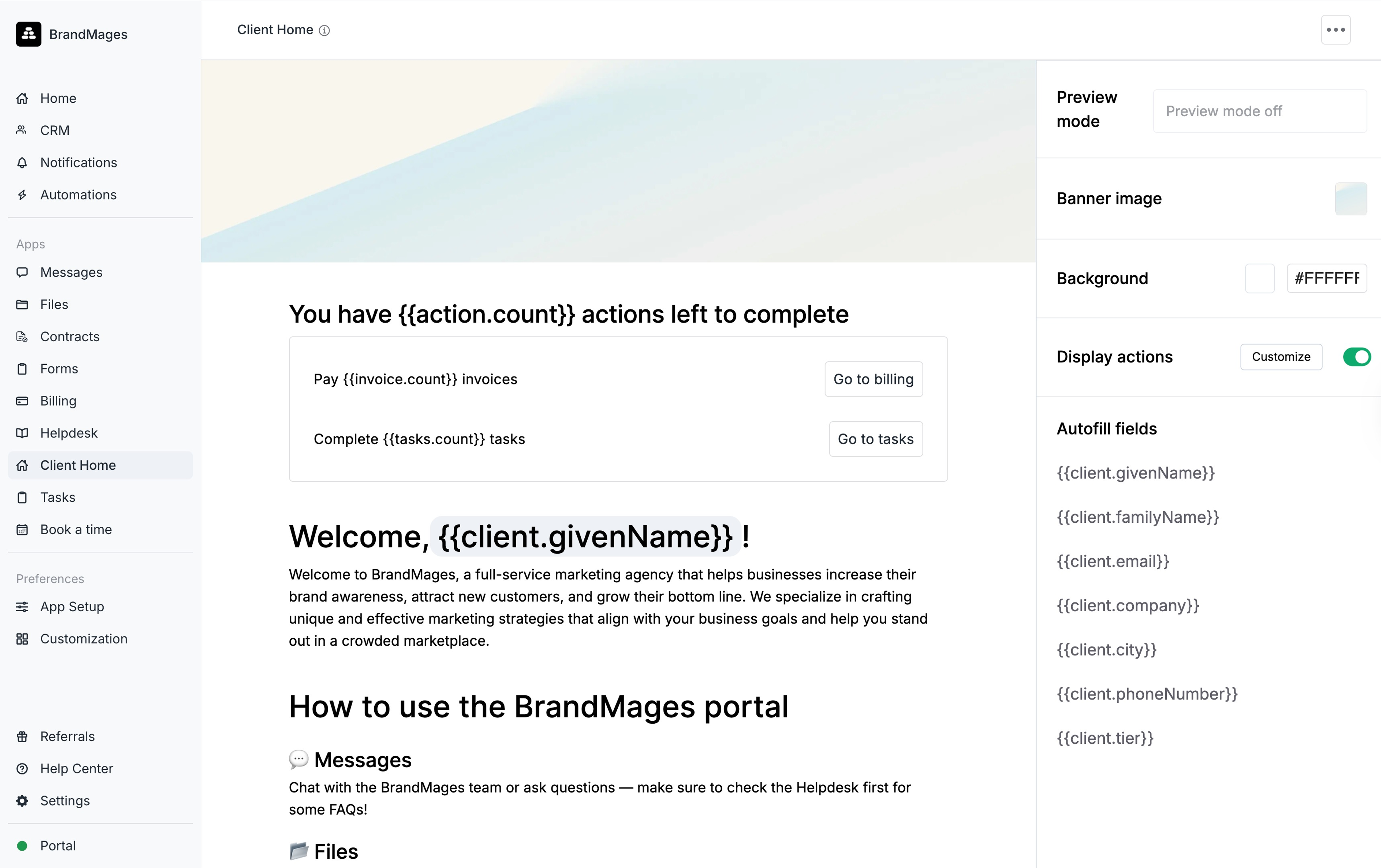
The Client Home App creates "a dynamic homepage for your clients within your portal" that displays announcements, firm information, and work expectations. It supports personalization through client data properties and custom fields, and can create segmented versions for specific client groups. When enabled, the **Actions** feature highlights items requiring client attention like invoices and contracts.
 ## App setup
Installation involves accessing **App Library**, selecting **Client Home** from **Client Apps**, clicking **Install**, setting a title and icon, and dragging the app to the top position in the app list to ensure clients see it first upon login.
## Setting up your Client Home
The app includes a sample layout for customization. The left side accommodates content while the right side provides customization tools including **Dynamic Fields** and **Segments**.
### Segments
Segments enable "up to 5 Client Home variants per workspace," with each client viewing only one version based on custom field tag rules.
**Creating a Segment:**
1. Click **Segments**
2. Click **Create Segment**
3. Enter a segment name
4. Select tags under "Show this segment if Tags is"
5. Optionally click **+ OR** for additional tags
6. Click **Create**
**Editing or Deleting:**
1. Click **Segments**
2. Hover over the target segment
3. Click the menu button (...)
4. Select **Update Segment** or **Delete Segment**
### Adding content
Content can be added via text editor or the "/" quick menu, offering options including:
* Headings (1, 2, 3)
* Text
* Autofill Fields
* Lists (bullet and numbered)
* Upload, Table, Callout, Divider, Embed, Link
### Dynamic Fields
These "automatically display client-specific information like names or custom data." Add them by typing "/" and selecting **Autofill fields** or clicking **Dynamic fields** on the right panel.
### Actions
This setting controls visibility of the **Actions** section displaying:
* Invoices
* Forms
* Contracts
* Tasks
Action items reference customized app names and show counts of outstanding items requiring client attention.
### Style customization
Customization includes uploading banner images with repositioning options and selecting background colors via color picker or hex code entry.
### Preview mode
Use **Preview** at the top to view the Client Home as a specific client would see it by selecting from a client dropdown.
## Client experience
Clients view a customized, view-only portal with personalized information and assigned actions. Those in segments see their corresponding Client Home version. When **Actions** are enabled, clients see outstanding item counts with direct links to relevant apps.
## App setup
Installation involves accessing **App Library**, selecting **Client Home** from **Client Apps**, clicking **Install**, setting a title and icon, and dragging the app to the top position in the app list to ensure clients see it first upon login.
## Setting up your Client Home
The app includes a sample layout for customization. The left side accommodates content while the right side provides customization tools including **Dynamic Fields** and **Segments**.
### Segments
Segments enable "up to 5 Client Home variants per workspace," with each client viewing only one version based on custom field tag rules.
**Creating a Segment:**
1. Click **Segments**
2. Click **Create Segment**
3. Enter a segment name
4. Select tags under "Show this segment if Tags is"
5. Optionally click **+ OR** for additional tags
6. Click **Create**
**Editing or Deleting:**
1. Click **Segments**
2. Hover over the target segment
3. Click the menu button (...)
4. Select **Update Segment** or **Delete Segment**
### Adding content
Content can be added via text editor or the "/" quick menu, offering options including:
* Headings (1, 2, 3)
* Text
* Autofill Fields
* Lists (bullet and numbered)
* Upload, Table, Callout, Divider, Embed, Link
### Dynamic Fields
These "automatically display client-specific information like names or custom data." Add them by typing "/" and selecting **Autofill fields** or clicking **Dynamic fields** on the right panel.
### Actions
This setting controls visibility of the **Actions** section displaying:
* Invoices
* Forms
* Contracts
* Tasks
Action items reference customized app names and show counts of outstanding items requiring client attention.
### Style customization
Customization includes uploading banner images with repositioning options and selecting background colors via color picker or hex code entry.
### Preview mode
Use **Preview** at the top to view the Client Home as a specific client would see it by selecting from a client dropdown.
## Client experience
Clients view a customized, view-only portal with personalized information and assigned actions. Those in segments see their corresponding Client Home version. When **Actions** are enabled, clients see outstanding item counts with direct links to relevant apps.