> ## Documentation Index
> Fetch the complete documentation index at: https://studio.assembly.com/docs/llms.txt
> Use this file to discover all available pages before exploring further.
# Forms app
> Collect data from clients with the Forms app.
The Forms app makes it easy to collect data from clients.
## Overview
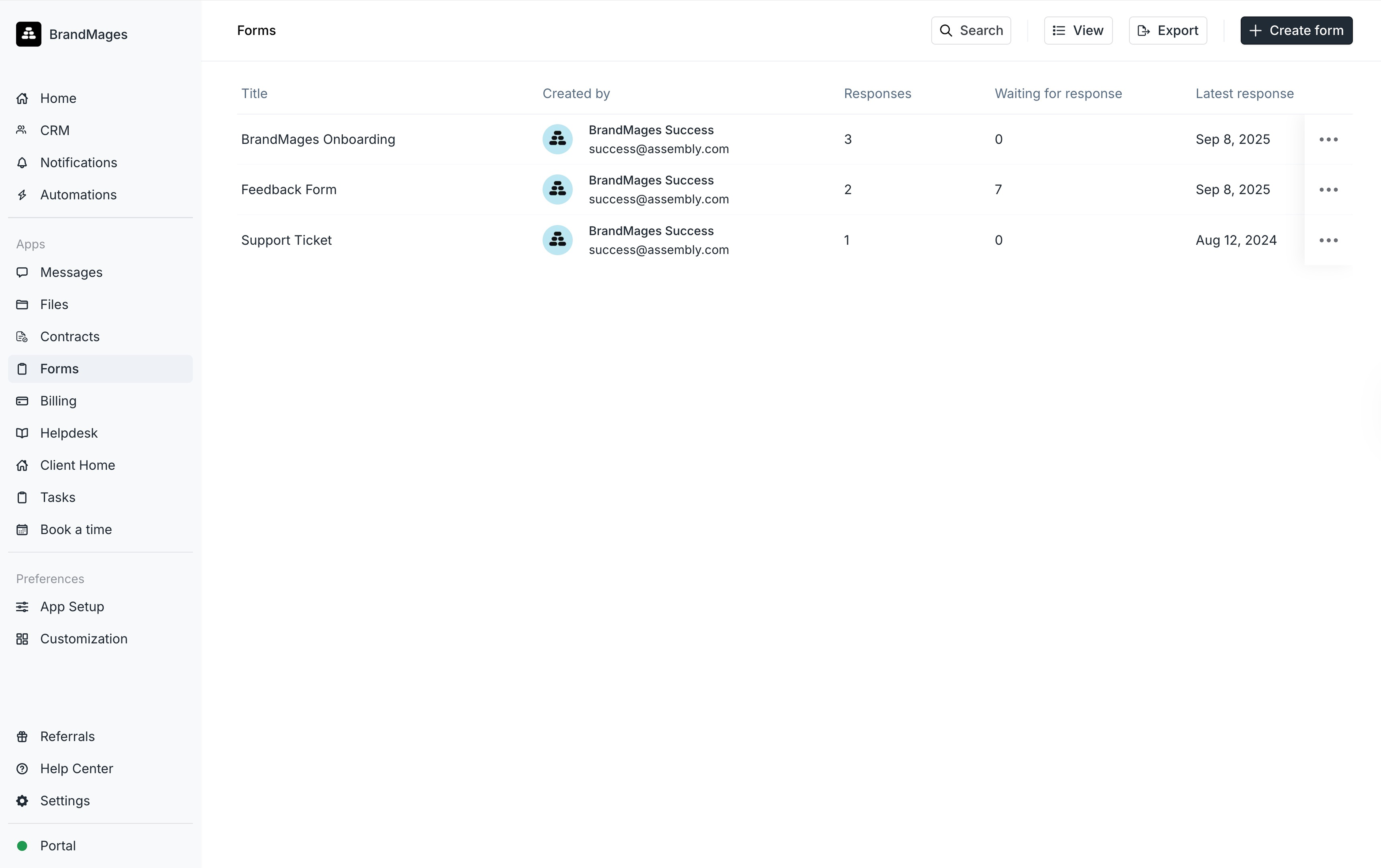 The Forms app makes it easy to collect data from clients.
## Internal user experience
### Key workflows
There are two main workflows for internal users:
**App view**
To see all forms, navigate to the Forms app by clicking on **Forms** in your sidebar. Here you can see forms and associated information, create new forms, and click into forms to see responses, open requests, and edit forms.
**Client Details view**
To access a particular client's form responses, you can click on a client on the **Clients** page and then navigate to the **Forms** tab. Here you can see form responses specific to the client.
### Creating forms
When you create a form you can add a title, description, set form visibility, specify if multiple submissions are allowed, and add one more questions. At any time, toggle the **Preview** button to see how the form will look to clients.
### Question types
| Answer type | Description |
| ------------- | ----------------------------------------------------------------------------------------------------------------------------------------------------------------- |
| Short answer | Ideal for single answer or short answers. |
| Long answer | Ideal for paragraph-length answers. |
| Multi select | Allows the client to select one or more options from a list. You can also include an "Other" option, allowing clients to add a custom response before submitting. |
| Single select | Allows the client to select one option from a list. You can also include an "Other" option, allowing clients to add a custom response before submitting. |
| File upload | Allows the client to upload one or more files. |
| Title card | Used to divide the form into sections |
| Phone Number | Allows the client to input a valid phone number. |
| Email | Allows the client to provide a valid email address. |
| Date | Allows the client to select a date using a calendar date selector or by manually entering it in the correct format. |
### Form visibility
**All clients can see the form**
This means the form is "always on" and clients can submit the form at any time. This is a common option for ticketing use-cases. A form in this state will notify clients once the form has been created.
**Clients can only see the form if you send it to them.**
A form in this state will not trigger any email or in-product notifications to clients on its own. The form will need to be shared with specific clients manually or via your no-code automation tool, and then the clients will be notified. This is best for single-use forms.
### Allow multiple submissions by the same client
When set to **True**, the same client can submit a form multiple times. The form visibility must be set to **All clients can see the form**.
## Client experience
### Email notifications
Clients automatically receive email notifications when a form is assigned to them. Email notifications will contain a link to the form to be submitted.
### Portal notifications
When forms are open, clients will see a numbered notification on their sidebar besides **Forms** that corresponds to the number of forms that still need to be submitted.
### Submitting a form
Clients can submit forms directly from your portal on desktop and mobile.
## Frequently asked questions
Yes, you can edit a form that has already been shared with a client. However, any form responses that you have already received will show the original questions and responses.
Once you've edited a form, you'll see an indicator that the question was edited if you click on an individual response.
The old questions will still show in the **Form Details** view so that you can still review the outdated responses easily.
This is not possible yet, but we are planning to include this in a future version of the Forms app.
Typeform supports conditional logic can be embedded as a Partner app.
Currently, we do not support exporting form responses to PDF.
There are a few workarounds you can use until we release this feature:
1. Export the form response to CSV, then use a CSV converter tool such as [CloudConvert](https://cloudconvert.com/csv-to-pdf).
2. In your browser, click **File > Print > Save as PDF**. Expand "More Settings" and set the paper size to "Legal", set the scale to "Custom", and alter the scale so that the full form is displayed on the PDF. You may need to test different scale options to print the full form response to PDF. Also, we recommend disabling headers and footers in this settings section.
3. Use an extension such as [GoFullPage](https://chromewebstore.google.com/detail/gofullpage-full-page-scre/fdpohaocaechififmbbbbbknoalclacl?hl=en).
The Forms app makes it easy to collect data from clients.
## Internal user experience
### Key workflows
There are two main workflows for internal users:
**App view**
To see all forms, navigate to the Forms app by clicking on **Forms** in your sidebar. Here you can see forms and associated information, create new forms, and click into forms to see responses, open requests, and edit forms.
**Client Details view**
To access a particular client's form responses, you can click on a client on the **Clients** page and then navigate to the **Forms** tab. Here you can see form responses specific to the client.
### Creating forms
When you create a form you can add a title, description, set form visibility, specify if multiple submissions are allowed, and add one more questions. At any time, toggle the **Preview** button to see how the form will look to clients.
### Question types
| Answer type | Description |
| ------------- | ----------------------------------------------------------------------------------------------------------------------------------------------------------------- |
| Short answer | Ideal for single answer or short answers. |
| Long answer | Ideal for paragraph-length answers. |
| Multi select | Allows the client to select one or more options from a list. You can also include an "Other" option, allowing clients to add a custom response before submitting. |
| Single select | Allows the client to select one option from a list. You can also include an "Other" option, allowing clients to add a custom response before submitting. |
| File upload | Allows the client to upload one or more files. |
| Title card | Used to divide the form into sections |
| Phone Number | Allows the client to input a valid phone number. |
| Email | Allows the client to provide a valid email address. |
| Date | Allows the client to select a date using a calendar date selector or by manually entering it in the correct format. |
### Form visibility
**All clients can see the form**
This means the form is "always on" and clients can submit the form at any time. This is a common option for ticketing use-cases. A form in this state will notify clients once the form has been created.
**Clients can only see the form if you send it to them.**
A form in this state will not trigger any email or in-product notifications to clients on its own. The form will need to be shared with specific clients manually or via your no-code automation tool, and then the clients will be notified. This is best for single-use forms.
### Allow multiple submissions by the same client
When set to **True**, the same client can submit a form multiple times. The form visibility must be set to **All clients can see the form**.
## Client experience
### Email notifications
Clients automatically receive email notifications when a form is assigned to them. Email notifications will contain a link to the form to be submitted.
### Portal notifications
When forms are open, clients will see a numbered notification on their sidebar besides **Forms** that corresponds to the number of forms that still need to be submitted.
### Submitting a form
Clients can submit forms directly from your portal on desktop and mobile.
## Frequently asked questions
Yes, you can edit a form that has already been shared with a client. However, any form responses that you have already received will show the original questions and responses.
Once you've edited a form, you'll see an indicator that the question was edited if you click on an individual response.
The old questions will still show in the **Form Details** view so that you can still review the outdated responses easily.
This is not possible yet, but we are planning to include this in a future version of the Forms app.
Typeform supports conditional logic can be embedded as a Partner app.
Currently, we do not support exporting form responses to PDF.
There are a few workarounds you can use until we release this feature:
1. Export the form response to CSV, then use a CSV converter tool such as [CloudConvert](https://cloudconvert.com/csv-to-pdf).
2. In your browser, click **File > Print > Save as PDF**. Expand "More Settings" and set the paper size to "Legal", set the scale to "Custom", and alter the scale so that the full form is displayed on the PDF. You may need to test different scale options to print the full form response to PDF. Also, we recommend disabling headers and footers in this settings section.
3. Use an extension such as [GoFullPage](https://chromewebstore.google.com/detail/gofullpage-full-page-scre/fdpohaocaechififmbbbbbknoalclacl?hl=en).