> ## Documentation Index
> Fetch the complete documentation index at: https://studio.assembly.com/docs/llms.txt
> Use this file to discover all available pages before exploring further.
# Command bar and shortcuts
> Navigate the Assembly Dashboard with your keyboard.
## Command bar
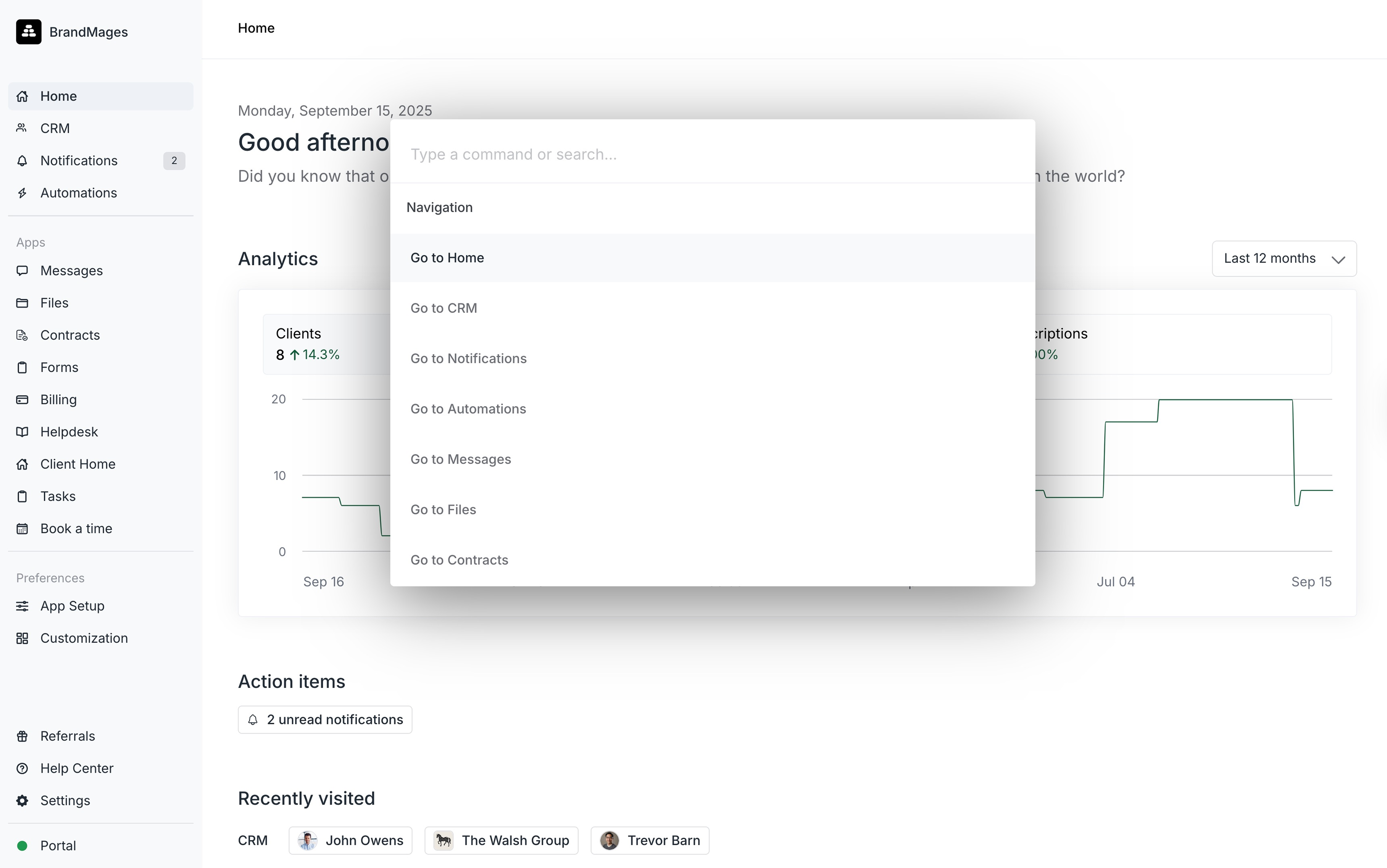 To open the command bar press *Command + K* (Mac) or *Control + K* (Windows). From there you can search for actions by typing, use up/down arrows to navigate, and click *Enter* to select an action.
The command bar is context-aware so the options you will differ based on the page you are on. For example if you are on a client details page, the first set of actions will relate to the client you are viewing.
## Shortcuts
Keyboard shortcuts let you navigate the Assembly Dashboard extremely quickly. To view all available keyboard shortcuts press *Shift + ?*. The most popular shortcuts are:
| Shortcut | Action |
| ------------------------------------------------------ | ----------------------------------------------------- |
| Command + K (Mac)
To open the command bar press *Command + K* (Mac) or *Control + K* (Windows). From there you can search for actions by typing, use up/down arrows to navigate, and click *Enter* to select an action.
The command bar is context-aware so the options you will differ based on the page you are on. For example if you are on a client details page, the first set of actions will relate to the client you are viewing.
## Shortcuts
Keyboard shortcuts let you navigate the Assembly Dashboard extremely quickly. To view all available keyboard shortcuts press *Shift + ?*. The most popular shortcuts are:
| Shortcut | Action |
| ------------------------------------------------------ | ----------------------------------------------------- |
| Command + K (Mac)
Control + K (Windows) | Command bar |
| o | Open client... (select client in the next step) |
| c | Create... (select invoice/form/etc. in the next step) |
| / or Command + F (Mac)
Control + F (Windows) | Search |
| Command + Enter (Mac)
Control + Enter (Windows) | Submit |
| Esc | Go back |
| Command + \[ (Mac)
Control + \[ (Windows) | Select above channel or left client details tab |
| Command + ] (Mac)
Control + ] (Windows) | Select below channel or right client details tab |